A checkbook register for Mac, built around your daily routine
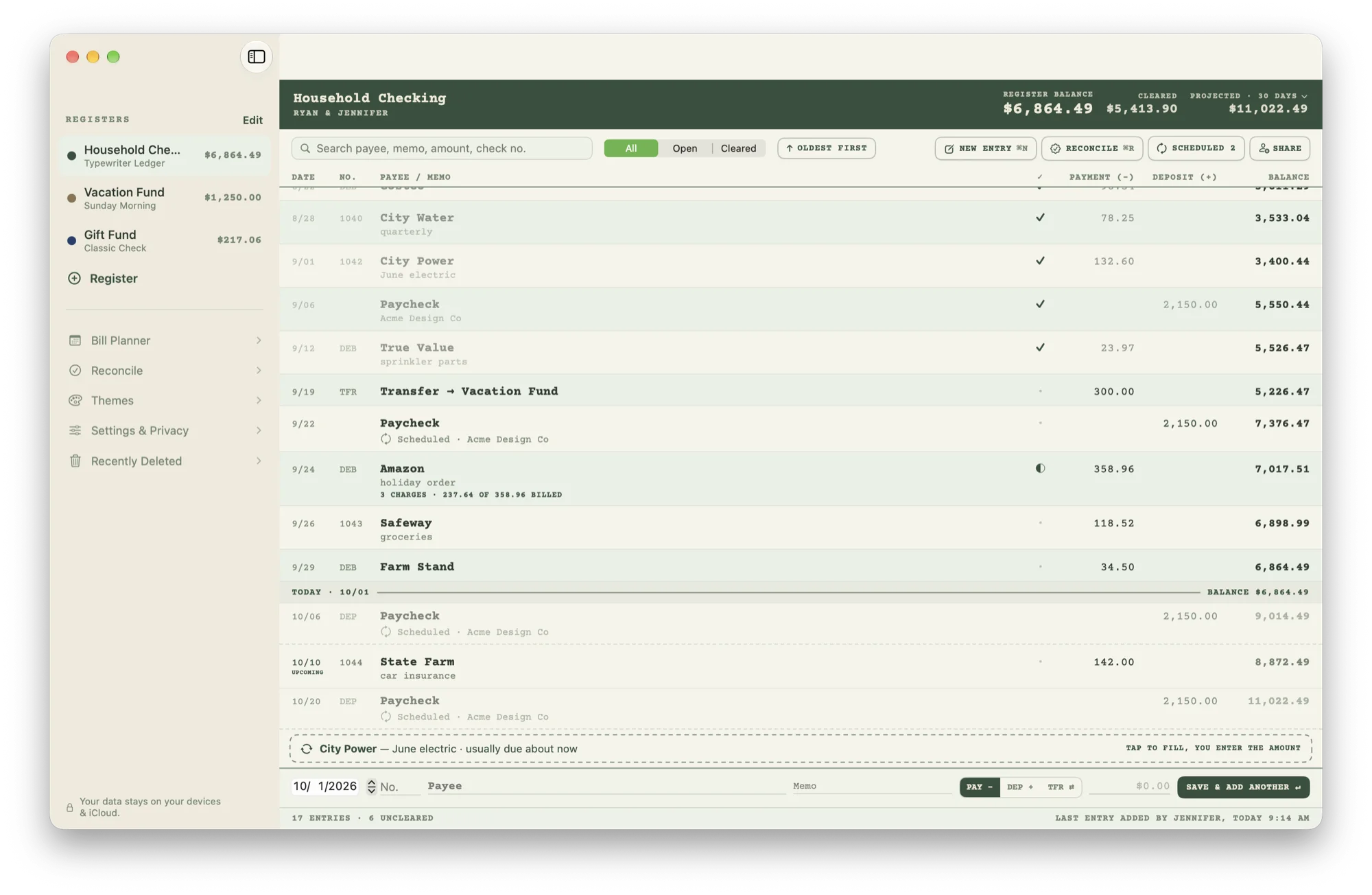
Keep a familiar ledger on your desk, with payments, deposits and a running balance. Simple Register is a native Mac app for people who want to maintain their own records without connecting a bank account.
Is a manual checkbook app right for you?
A checkbook register records what you have paid or received, including checks and payments that have not reached your bank statement yet. Simple Register keeps that familiar ledger on your Mac. You enter transactions yourself or import a CSV file; it does not connect to your bank or download transactions automatically.
It fits a household that wants to keep its own records, reconcile a statement and optionally share a register through iCloud. If you want automatic bank feeds or investment tracking, those are not what this app is built for.
Moving from paper or a spreadsheet
Start with a balance you can verify, then enter the payments and deposits that follow it. Keep any outstanding checks in view so they are not forgotten when you compare the register with your statement. Our guide to balancing a checkbook explains how outstanding transactions affect the comparison.
If your current app or spreadsheet exports CSV, you can bring those records into Simple Register. Match the columns and review the import before saving. Check the resulting balance against your original records before you start using the new register every day.
A short daily routine
- Choose the account. Each register has its own entries. Use checking, savings or credit card registers as appropriate; the column labels follow the register type.
- Enter the transaction. Use New Entry (⌘N), then enter the date, payee and amount. Add a check number for checking entries or a memo when you need a reminder of what it was for.
- Check the direction. A payment reduces a checking balance; a deposit increases it. Read the amount column separately from the running balance, which includes earlier transactions.
- Save and review the row. Search the ledger when you need to find or correct a past entry. The All, Open and Cleared filters help you focus on the relevant transactions.
Reconcile with your statement beside you
Choose Reconcile (⌘R), enter the statement ending balance, and match its transactions to the register. Leave checks that have not cleared unchecked. The reconciliation guide walks through an example where the running and statement balances are both correct but different.
Missing a transaction? Use Add Entry from reconciliation. You can also open an entry to correct it. Your worksheet progress stays on that device so you can close it and return later.
Recurring entries and future balances
Schedule a regular payment or deposit once and review what is coming up. Due automatic entries are added when you open the app. Projected balances help you inspect future entries; they are not a live bank balance or a guarantee that money will be available.
Your Mac, with an optional companion in your pocket
Simple Register also runs on iPhone and iPad. Use iCloud sync for your own devices or invite someone to a shared household register. Local mode is available if you prefer to keep the register on the Mac.
You can import CSV records, export CSV or PDF, and print register pages. Keep exported records somewhere you control. There is no Windows, Android or browser version.
Questions about using Simple Register on Mac
Can I use it without iCloud or an internet connection?
Yes. Local mode keeps your register on the Mac and lets you record transactions without a bank connection. Optional iCloud sync and household sharing need an internet connection to exchange changes between devices.
Can I use the same register on my iPhone?
Yes. Simple Register also runs on iPhone and iPad. Use iCloud to sync your own devices, or invite another person to a shared household checkbook with view or edit access.
Can I print or export my checkbook register?
Yes. You can print register pages and export records as CSV or PDF. CSV is useful when you want to work with the entries in a spreadsheet; PDF gives you a readable copy to keep with your statements.
Is Simple Register free?
The download is free and every feature is available for seven days. After the trial, a $9.99 one time purchase in the U.S. unlocks the app permanently. There is no subscription or automatic charge. Existing paid owners keep full access. Check the App Store for current regional pricing and Mac requirements.