How to balance a checkbook in Simple Register
Match the transactions in your register to your bank statement. Check off the ones that cleared. Leave outstanding checks and payments alone. The goal is a zero reconciliation difference, even when your register and statement show different balances.
Running balance vs. cleared balance
Your running balance reflects the payments and deposits you've recorded in your register. A check you wrote today belongs there even if the person receiving it hasn't deposited it yet.
Your cleared balance reflects the entries you've marked as cleared. When reconciling a statement, match the transactions on that statement through its closing date. A payment that cleared afterward belongs to the next period.
Simple Register also shows projected balances for future entries. Keep those separate from the statement you're reconciling: a scheduled paycheck next month isn't a cleared deposit today.
A worked checkbook example
Suppose the register and the bank agree on an opening balance of $1,000. You then record these four transactions. This is an illustrative example; the app screenshot below uses a different demo register.
| Transaction | Amount | On the statement? |
|---|---|---|
| Opening balance | $1,000.00 | Already agreed |
| Paycheck deposit | +$500.00 | Yes |
| Utility payment | −$75.00 | Yes |
| Grocery purchase | −$40.00 | Yes |
| Check not yet deposited | −$60.00 | No — leave uncleared |
The statement ends at $1,385.00: $1,000 + $500 − $75 − $40. Your running balance is $1,325.00 because you've also recorded the outstanding $60 check.
Reconcile your statement in the app
Have the bank statement for the account and period you're checking beside you. Simple Register doesn't connect to your bank, so you stay in charge of which entries are recorded and cleared.
- Open the matching register. Make sure you're checking the right account. If you're starting a new register, use an agreed opening balance and avoid importing the same transactions twice.
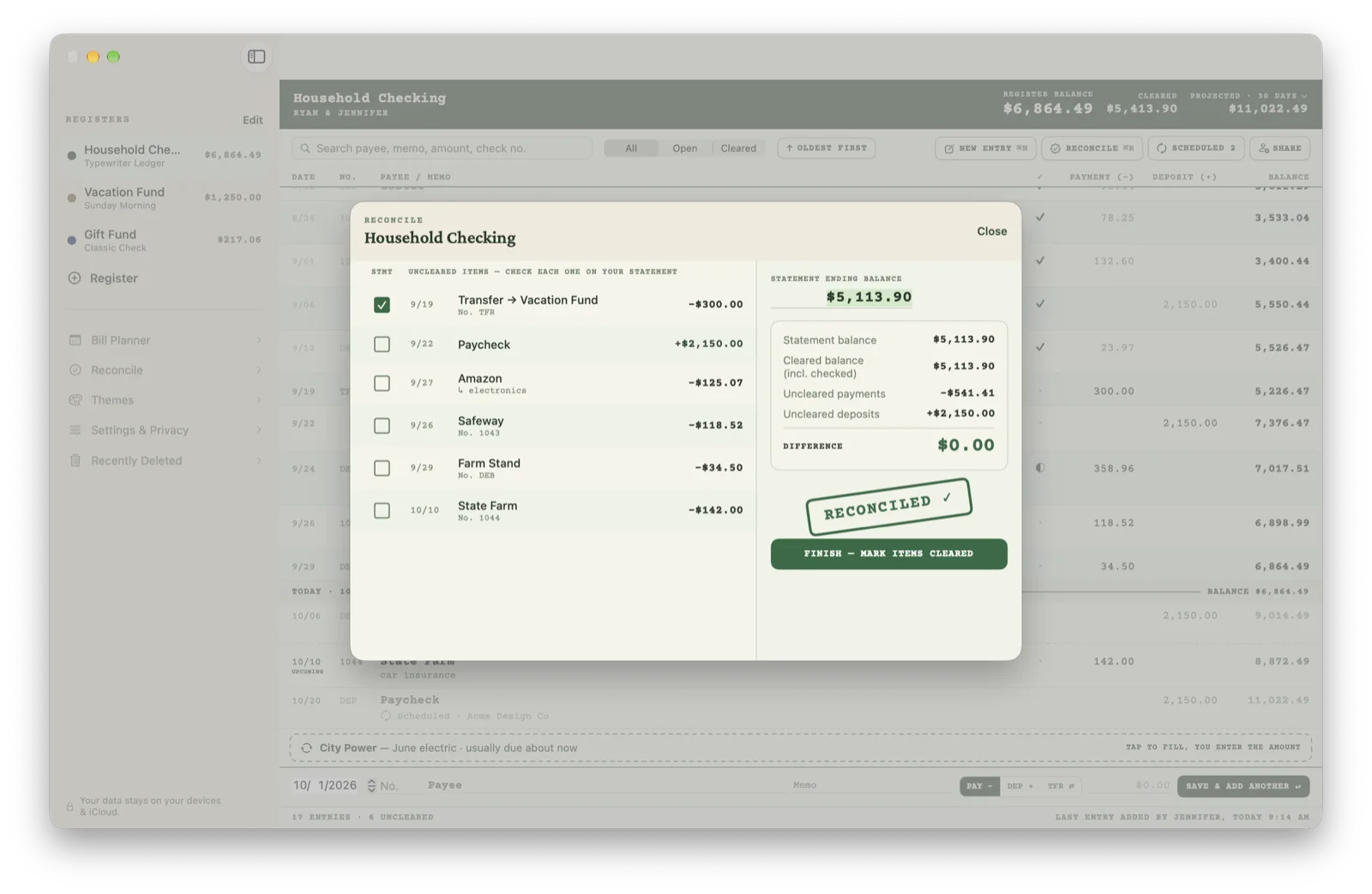
- Choose Reconcile. On Mac, the Reconcile button is above the ledger. Enter the statement's ending balance in the reconciliation screen.
- Match the statement line by line. Check the date, amount, payee and check number where applicable. Check off each matching transaction that appears on this statement. Leave items that haven't cleared unchecked.
- Review the difference. The screen compares the statement balance with your cleared balance, including the items you've just checked. Investigate any difference before finishing.
- Finish when the difference is $0.00. On Mac, choose Finish — Mark Items Cleared. The checked entries become cleared; outstanding entries remain open.
When the difference isn't zero
- Check the period. Use the statement's ending balance, not today's online balance if it includes later activity. Check whether any later transactions were marked cleared early.
- Look for missing entries. A fee, interest deposit, automatic payment or transfer may be on the statement but missing from your register. Record the actual transaction once.
- Check for duplicates. A manual entry and an imported copy of the same payment can make the register wrong even though each amount looks right.
- Compare amounts and payment/deposit direction. A misplaced decimal or a deposit entered as a payment will change the result. Correct the original entry after checking your records.
- Check orders billed in pieces. If you've used an itemized entry, match its individual charges as they post. Don't also add the full order again as a separate payment.
Use the register's All / Open / Cleared filter to inspect the entries. Changing the filter changes what you see, not the balance. If you're stuck, contact support with a description of the mismatch. Don't send bank credentials or full account numbers.